Same-Day Electricity Service
< 1 minute readNeed your electricity turned on fast? BKV Energy offers same-day service for eligible customers when applications are submitted on time

2 minute read • Last update August 2024
First, hover over the “Billing and Payments” link in the menu. Then, click on the “Manage Autopay” menu item.
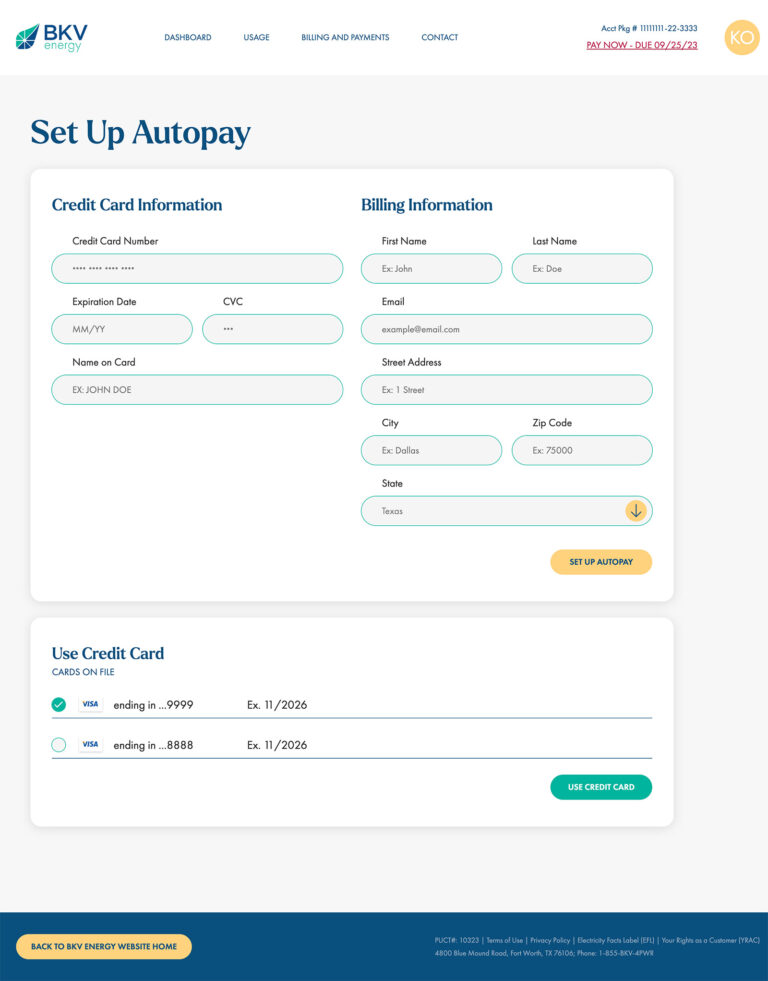
To enable autopay, simply click on the “Enable Autopay” link which will take you to the first step of the process.
Once you’re on the Set Up Autopay page, you’ll need to fill in all your credit card and billing information, just like when making a payment.
In case you already have a credit card saved, you’ll be able to see it in the “Use Credit Card” block below the form and use it to enroll in autopay.
First, hover over the “Billing and Payments” link in the menu. Then, click on the “Manage Autopay” menu item.
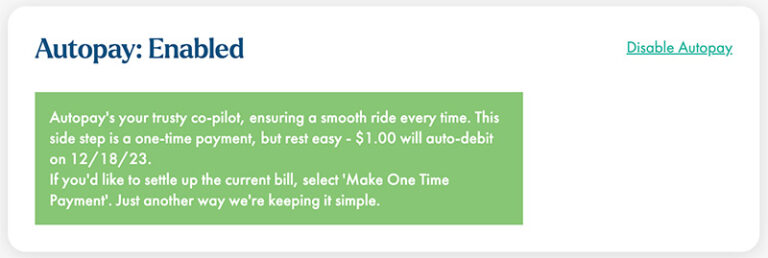
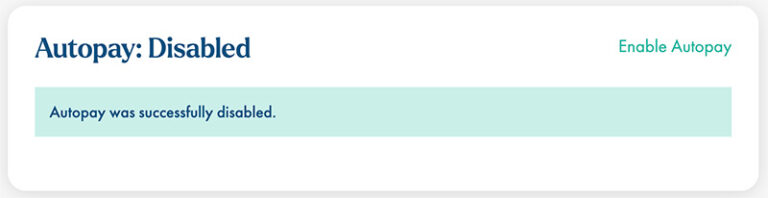
If autopay was previously enabled, you’ll see a “Disable Autopay” link on the top-right corner. Click this button to disable autopay.